
How do I install apps?
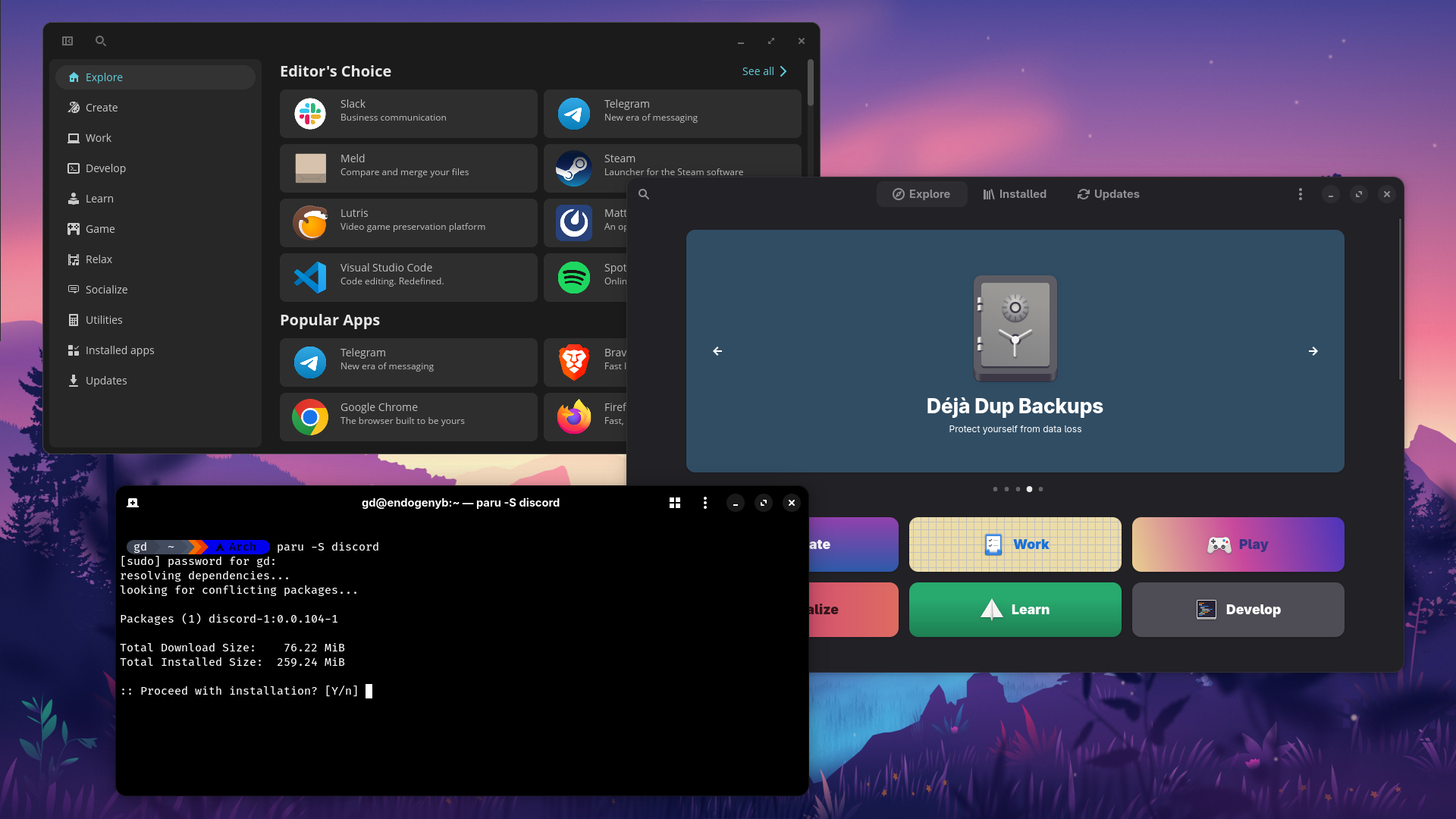
Installing software on Linux is often easier and more secure than on Windows. With Windows, you would usually install apps from a website, or the Microsoft Store. On Linux, you generally install applications with a Package Manager. Linux distributions use package managers to handle management (think installing, uninstalling) of apps, kernel updates, and drivers. Most modern distros have a graphical Software Center that functions like an app store, with the ability to manage apps and updates across your PC (this varies on the distro you choose). It's generally the most beginner friendly way to browse and install software from your distro's official repositories. If you want more flexibility, you can install apps from the terminal, and add different app repositories for more software.
There are also other methods of installing apps, such as universal package formats like Flatpak, Snap, and AppImage. Flatpak and Snap are similar to app stores for Linux, offering a wider range of applications that can be installed on almost any distro. An AppImage is a single file you can download and run without any installation, making it very convenient for portable software. Many of these formats offer the latest software versions and a degree of isolation from the rest of your system, which can be a security bonus.
Why so many package formats?
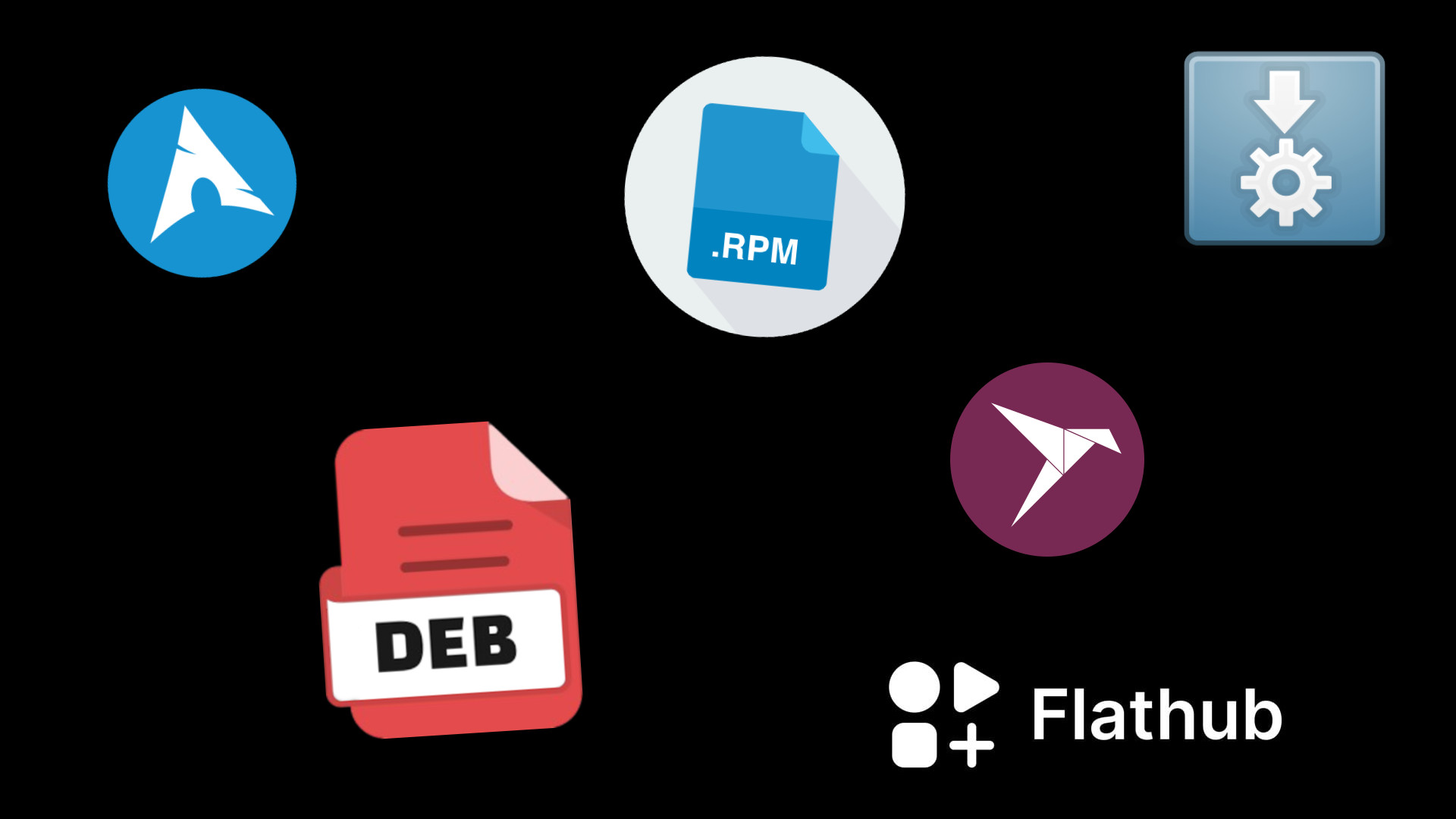
The variety of package formats in Linux is a result of the open-source philosophy and the freedom to create different distributions, each with its own specific needs and goals. Historically, Linux distros developed their own package formats to manage software, which led to the creation of formats like .deb (used by Debian, Ubuntu, and Linux Mint) and .rpm (used by Fedora, Red Hat, and openSUSE). These distro-specific formats are highly optimized for their respective systems and ensure that software works seamlessly with the core operating system.
However, this created a problem for developers who wanted to release their software for all Linux users without having to package it for dozens of different distros. This led to the development of the more modern, universal formats like Flatpak, Snap, and AppImage. These formats bundle an application with all its necessary components, meaning they can run on almost any Linux distro without compatibility issues. So, while the different formats may seem confusing at first, they offer you a fantastic choice between software that is perfectly integrated into your system and software that can run anywhere.
Using Wine, and why not every windows app will work.
While a lot of popular software has a native Linux version, you may have some specific Windows applications you still need to use. That's where Wine comes in. Wine (which stands for "Wine Is Not an Emulator") is a compatibility layer that allows you to run many Windows applications on Linux. Unlike a virtual machine, which simulates an entire computer, Wine translates Windows commands into commands your Linux system understands, giving you better performance and a more seamless experience.
The key thing to remember is that Wine doesn't work perfectly with every single Windows application. While many common programs and games run flawlessly, others may not work at all. Before you try to install something, you should check the Wine Application Database (AppDB) to see if the app you want to use is supported and if there are any special instructions. You can install Wine easily with your distro’s package manager or Software Center. Just search for "wine," and your system will handle the rest.
Using Package Managers
Flatpak (Universal across Distros)
Flatpak is preinstalled on many distributions. Follow the Flatpak website for instructions on how to install it.
https://flathub.org/setupOnce installed, you can install apps through your software store, or via the terminal. Below are some example commands to get you started
1: Search for Google Chrome - 2: Install Chrome - 3: Upgrade all Flatpaks - 4: Uninstall ChromeAppImage
AppImages are portable applications that can be run without installation. You shouldnt really use AppImages unless you have a reason to.
Once an AppImage has been downloaded, you can run it by double clicking it. If this doesnt work, check it has permissions first by running the command below:
(make sure you are in the right directory, use 'cd' to navigate. e.g 'cd ~/Downloads')Distro Specific Package Managers
If you are using a distro that has a package manager, you can install apps through the package manager using terminal-based.
For example, heres how you can install firefox on different distros:
Ubuntu/Debian based (apt) Fedora based (dnf) Arch based (pacman, or an AUR helper such as 'yay')Refer to these websites for further information on how to use your distro's package manager: